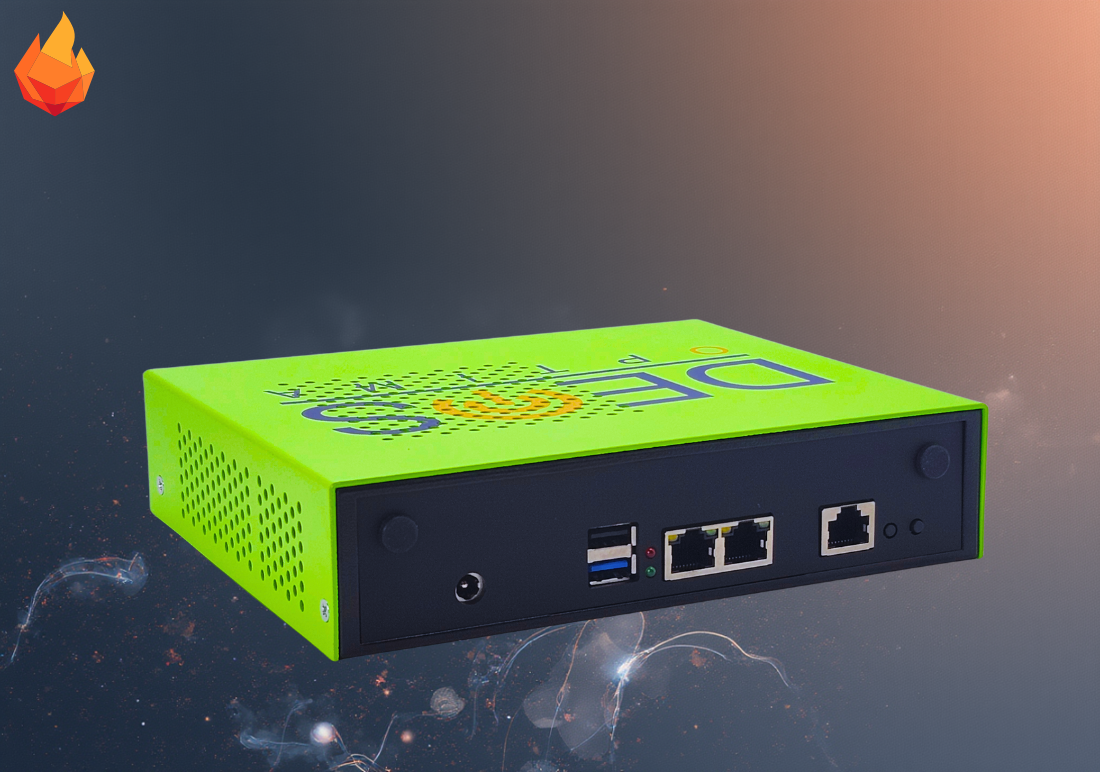
Here is the easy way to upgrade the BIOS on Boingfire Systems:
- Format USB & extract the ZIP file relevant to your request
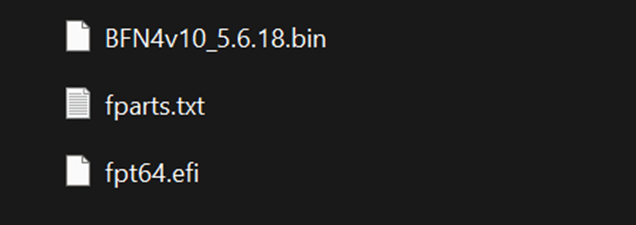
BFN4v10_5.6.18.bin | BIOS File
fpt64.efi | BIOS Program Tool in UEFI
2. Plug the USB into the Board
3. Booting Board (Pressing Esc to enter BIOS)
4. Select UEFI: Built-in UEFI Shell (Make sure the USB with files is visible under Boot Override)
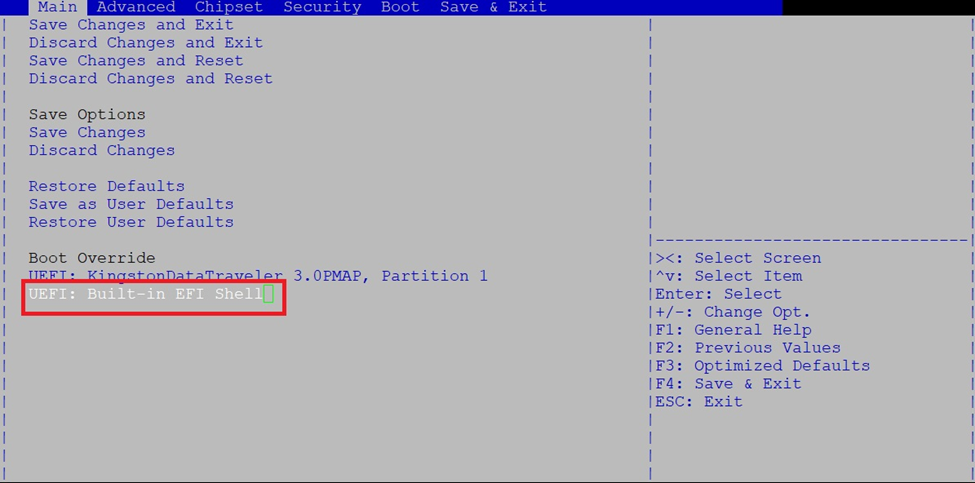
(The system should boot into UEFI and should get a prompt like the one shown in the next step.)
5. Enter the correct drive name of the USB flash drive (In this case, it was “fs0:”)
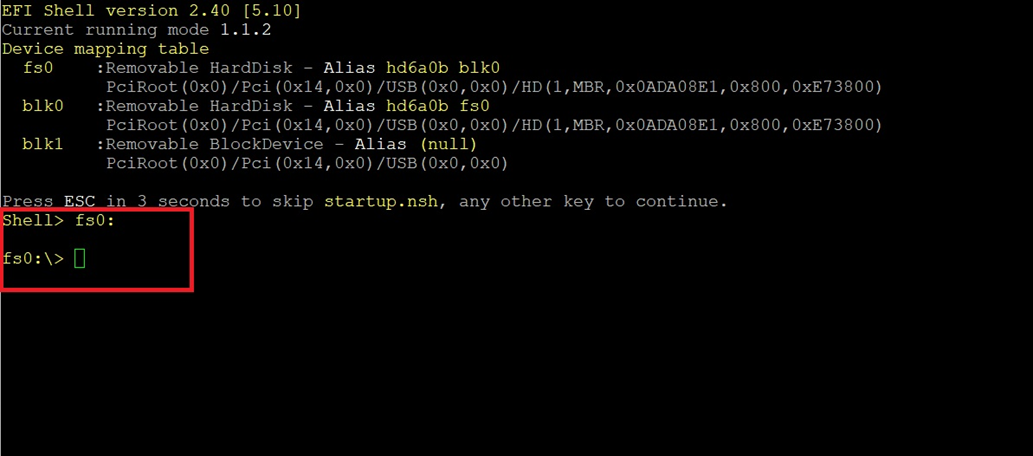
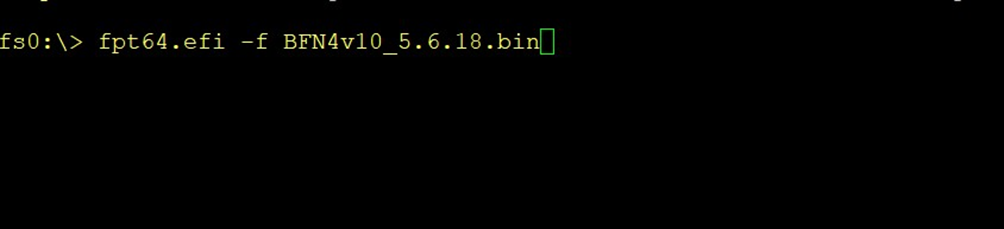
6. Type the command shown in the image below and press Enter.
[fpt64.efi -f BFN4v10_5.6.18.bin] In this example, we are upgrading the BFN4 BIOS. The file name may vary depending on the BIOS version
CAUTION: MUST NOT REMOVE POWER WHEN BIOS IS PROGRAMMING
6. If you see the screen below and it is showing “FPT Operation Passed“, the BIOS has been updated successfully.
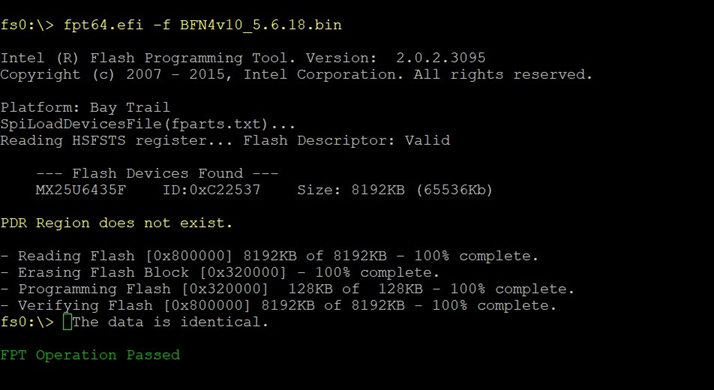
7. Remove the USB and Reboot, the system should show you the latest version of BIOS during boot.
Note: All systems shipped by Boingfire are with updated BIOS. If you need the latest BIOS, Contact sales.